How to Set Up Digital Product Passports on Shopify in 5 Minutes
The European Union's Digital Product Passport (DPP) requirements are rolling out, and Shopify merchants need to be ready. The good news? Getting compliant doesn't have to be complicated or time-consuming.
In this step-by-step tutorial, we'll show you how to create EU-compliant Digital Product Passports for your Shopify products in just 5 minutes using PassportPro. By the end of this guide, you'll have professional, scannable product passports that meet regulatory requirements and enhance customer trust.
Why Your Shopify Store Needs Digital Product Passports
Before we dive into the setup process, let's quickly cover why DPPs matter for your business:
Regulatory Compliance
The EU's Ecodesign for Sustainable Products Regulation (ESPR) makes Digital Product Passports mandatory for selling regulated products in European markets. Starting with batteries in 2025 and expanding to textiles, electronics, and other categories by 2027, DPPs are becoming essential for market access.
Competitive Advantage
Customers increasingly demand transparency about sustainability and product origins. DPPs demonstrate your commitment to ethical business practices and can differentiate you from competitors.
Reduced Returns
Clear, comprehensive product information helps customers make informed decisions, reducing returns caused by unclear specifications or mismatched expectations.
Future-Proofing
DPP requirements will only expand over time. Setting up the infrastructure now means you're prepared for future regulations rather than scrambling at deadlines.
Now, let's get your Shopify store DPP-ready.
Prerequisites
Before starting, make sure you have:
- A Shopify store (any plan works—Basic, Shopify, or Advanced)
- Admin access to your Shopify dashboard
- Product information ready (materials, manufacturing details, environmental data)
- 5 minutes of uninterrupted time
That's it. No technical expertise required.
Step 1: Install PassportPro From the Shopify App Store
Setting up Digital Product Passports starts with installing the right tool. PassportPro is built specifically for Shopify merchants and designed for simplicity.
Installation Process
- Log into your Shopify admin dashboard
- Navigate to Apps in the left sidebar
- Click Shopify App Store at the top of the Apps page
- Search for "PassportPro" in the search bar
- Click on the PassportPro app listing
- Click Add app (or Install if prompted)
- Review the permissions request—PassportPro needs access to:
- Product data (to create passports)
- Theme integration (to display passport badges)
- Orders (to track passport scans and engagement)
- Click Install app to confirm
The installation is instant. You'll be automatically redirected to the PassportPro onboarding screen once installation completes.
Initial Setup
PassportPro's onboarding wizard will guide you through:
- Store configuration: Select your primary markets (especially if you sell to the EU)
- Compliance preferences: Choose which regulations apply to your products (ESPR, Battery Regulation, etc.)
- Branding customization: Upload your logo and select colors to match your brand
- Default settings: Configure default values for common fields across your products
This initial setup takes about 2 minutes and can be modified anytime from the PassportPro settings panel.
Step 2: Configure Your First Digital Product Passport
Now for the exciting part—creating your first passport. PassportPro makes this intuitive with a guided workflow.
Navigate to Product Selection
- From the PassportPro dashboard, click Create New Passport
- Select Choose Existing Product (or manually add product details if it's not in Shopify yet)
- Search for the product you want to add a passport to
- Click Select Product
PassportPro will automatically pull in basic product information from your Shopify catalog (name, price, images, description).
Complete Required Information
The passport configuration screen is organized into clear sections. Fill out each one:
Basic Product Details
- Product identifier: Auto-generated unique ID (you can customize if needed)
- Manufacturer name and contact: Your business or supplier information
- Country of manufacture: Where the product is made
- Manufacturing date: When this batch was produced (can use date ranges)
Material Composition
This is critical for compliance. Add each material:
- Material name: (e.g., "Organic Cotton," "Recycled Polyester," "Aluminum")
- Percentage: What portion of the product this material represents
- Recycled content: Percentage of recycled material (if applicable)
- Source/origin: Where the material comes from
Use the + Add Material button to include multiple components.
Environmental Impact
- Carbon footprint: Total CO2 emissions (if available from supplier)
- Water usage: Liters used in production
- Energy consumption: Production energy use
- Certifications: Select from common certifications (GOTS, OEKO-TEX, FSC, etc.) or add custom ones
Pro tip: If you don't have exact figures yet, start with estimates and update later. Some information is better than none.
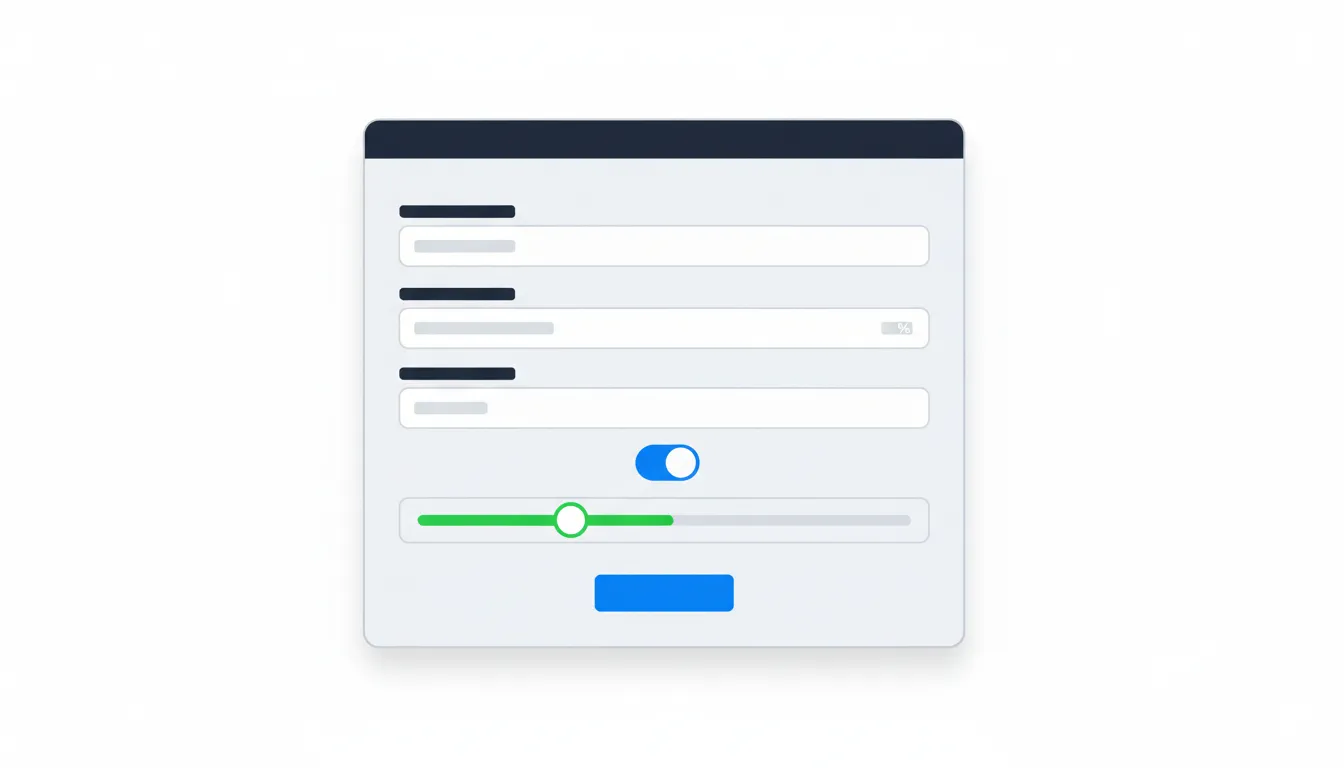
Repairability and Durability
- Expected lifespan: How long the product should last
- Repairability score: Rate from 1-10 (use EU's repair index if available)
- Care instructions: How to maintain the product
- Warranty information: Coverage details and duration
Save Your Draft
Click Save Draft frequently as you work. PassportPro auto-saves every 30 seconds, but manual saves ensure nothing is lost.
Step 3: Add Materials and Substances Details
Let's expand on the materials section, as this is often the most detailed part of DPP compliance.
Adding Primary Materials
For each major material component:
- Click + Add Material in the Material Composition section
- Fill in the material details:
- Material type: Select from dropdown (textiles, metals, polymers, etc.)
- Specific material: (e.g., "100% Organic Cotton")
- Weight/percentage: Proportion of total product
- Supplier: Who provided this material
- Country of origin: Where the material was sourced
Declaring Substances of Concern
If your product contains any regulated or hazardous substances:
- Navigate to the Substances tab
- Click + Add Substance
- Select substance from the REACH database list or enter manually
- Specify concentration and any safety information
- Add handling instructions if required
Recording Recycled Content
For materials containing recycled content:
- In the material entry, toggle Contains Recycled Content
- Enter percentage of recycled material
- Specify type of recycled content (post-consumer, post-industrial)
- Add certification proof if available (upload PDFs or images)
Documenting Supply Chain
For enhanced transparency:
- Click Supply Chain Details for any material
- Add supplier information or upload supplier declarations
- Include traceability IDs or batch numbers
- Upload relevant certifications (Fair Trade, Responsible Sourcing, etc.)
Time-saving tip: Create material templates for materials you use across multiple products. PassportPro lets you save and reuse common materials, so you only need to enter details once.
Step 4: Generate QR Codes
Once your passport information is complete, it's time to create the QR codes customers will scan.
QR Code Generation
- From your completed passport, click Generate QR Code
- Choose your QR code style:
- Standard: Basic black-and-white QR code
- Branded: QR code incorporating your brand colors
- Custom: Upload a logo to embed in the QR code center
- Select QR code size:
- Small: For product tags or labels (minimum scannable size)
- Medium: For packaging (recommended)
- Large: For posters or large format materials
- Click Generate
PassportPro creates a unique, scannable QR code linked to your product's Digital Product Passport.

Downloading and Using QR Codes
You have several options for using your QR codes:
Option 1: Digital Use
- Download PNG: High-resolution image for digital screens or websites
- Download SVG: Scalable vector graphic for any size printing
- Copy embed code: HTML snippet to add QR directly to web pages
Option 2: Physical Products
- Print on labels: Download and send to your label printer
- Add to packaging: Include QR codes on boxes, hang tags, or inserts
- Direct product printing: If you print directly on products, use the vector file
Option 3: Bulk Generation
For multiple products:
- Navigate to Bulk Actions in PassportPro
- Select multiple products
- Click Generate QR Codes
- Download as a ZIP file containing all QR codes with filename labels
Testing Your QR Code
Before going live:
- Print or display your QR code
- Scan it with your smartphone camera
- Verify the passport page loads correctly
- Check that all information displays properly on mobile
- Test from different devices and browsers
Step 5: Add Passport Badge to Product Pages
The final step is showcasing your Digital Product Passports directly on your Shopify product pages, so customers can access them without scanning physical QR codes.
Automatic Badge Integration
PassportPro can automatically add passport badges to your product pages:
- In PassportPro settings, navigate to Theme Integration
- Toggle Auto-add Passport Badges to ON
- Select badge placement:
- Below product title
- Next to Add to Cart button
- In product description
- Custom position (you specify)
- Choose badge style:
- Minimal: Small icon with "View Product Passport" text
- Standard: Icon plus sustainability highlights
- Detailed: Full badge with key metrics visible
- Click Save Settings
PassportPro's theme integration works with all major Shopify themes. The badge automatically appears on any product with a completed passport.
Manual Badge Placement
If you prefer manual control over badge placement:
- Go to Shopify Admin > Online Store > Themes
- Click Customize on your active theme
- Navigate to a product page
- Add a Custom Liquid block where you want the badge
- Paste PassportPro's badge code (provided in the app under Theme Integration > Manual Code)
- Save your theme changes
Customizing Badge Appearance
Fine-tune the badge to match your store's design:
- In PassportPro, go to Settings > Badge Customization
- Adjust:
- Colors: Primary, accent, and text colors
- Size: Small, medium, or large
- Style: Flat, outlined, or elevated (shadow)
- Text: Customize the badge label
- Preview changes in real-time
- Click Apply Changes
The badge is clickable—when customers click it, a modal opens displaying the full Digital Product Passport without leaving your product page. Alternatively, configure it to open in a new tab.
Tips for Maintaining DPP Compliance
You've set up your first Digital Product Passport—congratulations! Here are best practices to maintain ongoing compliance:
Regular Data Updates
- Review quarterly: Check that information remains accurate, especially environmental data
- Update when products change: Material changes, new suppliers, or improved sustainability metrics require passport updates
- Track regulatory changes: Subscribe to PassportPro's compliance updates to stay informed of evolving ESPR requirements
Expand Gradually
- Start with key products: Focus first on best-sellers or products in regulated categories
- Create templates: For product families with similar characteristics, use templates to speed up passport creation
- Set goals: Aim to have X% of your catalog with passports by specific dates
Leverage Passport Data
- Marketing campaigns: Highlight your most sustainable products using passport data
- Customer education: Create content explaining how to use and interpret passports
- Supplier improvement: Use passport creation as leverage to request better environmental data from suppliers
Monitor Performance
PassportPro's analytics show:
- How many customers scan or view passports
- Which products have the most passport engagement
- Where customers are located when viewing passports
- Time spent viewing passport information
Use these insights to optimize your sustainability messaging and improve product transparency.
Stay Compliant
- Enable compliance alerts: PassportPro notifies you when regulations affecting your products change
- Run compliance checks: Use PassportPro's built-in compliance checker to identify missing or outdated information
- Maintain documentation: Keep supplier declarations, certifications, and test results organized in PassportPro's document library
Conclusion: You're Now DPP-Ready
In just 5 minutes, you've transformed your Shopify store into a compliance-ready, transparency-leading business. Your customers can now access comprehensive product information with a simple scan or click, and you're prepared for the EU's evolving sustainability regulations.
Digital Product Passports aren't just about compliance—they're about building trust, differentiating your brand, and contributing to a more sustainable, circular economy. Every passport you create is a statement about your values and commitment to transparency.
Next Steps
Now that you've created your first passport:
- Add passports to more products: Set a goal to cover your top 10-20 products this month
- Promote your transparency: Add messaging to your homepage or About page highlighting your DPP implementation
- Train your team: Ensure customer service staff understand DPPs and can answer questions
- Engage customers: Encourage scanning through social media, email campaigns, or in-package inserts
- Iterate and improve: As you gather more detailed data, update passports with enhanced information
Get Support
Questions or need help? PassportPro offers:
- In-app chat support: Real-time assistance from DPP experts
- Knowledge base: Comprehensive guides for every feature
- Compliance consulting: Optional services for complex multi-product catalogs
- Community forum: Learn from other Shopify merchants implementing DPPs
Ready to make your entire catalog compliant? Log into PassportPro and start creating your next Digital Product Passport. Your customers—and the planet—will thank you.
Have questions about Digital Product Passports or PassportPro? Contact our team or explore our other guides on EU ESPR compliance and sustainability best practices.
Ready to get started?
Create EU-compliant Digital Product Passports for your Shopify store in minutes.
Install PassportPro on Shopify